To start off with you're going to need yourself a copy of Photoshop. Obvious advice is obvious I know. I'm using the portable CS4 edition but there shouldn't be too much difference between versions really.
To start off with we're going to make a new document and input 400 by 400 pixels for our work area.
Note: As you get more proficient you can start with a 180x180 workspace but it's more fiddly. It can produce slightly cripser details due to doing everything at scale but for the scope of this tutorial we're going to be using 400x400

Next step is we're going to load in our images that we want to use. In this case the images that Gagh wants in his avatar. He's chosen some good images because they represent different challenges in chopping which we're going to get to in a minute.
Right, so I'm going to go ahead and load the three images that we need for this avatar now.
I'm going to start chopping the Socrates image because it is by far the easiest to start off with.
Now, to start with you may be tempted to just use the magic wand tool to cut your images but don't use it. It will nearly always produce jagged edges around your image. There is a use for it when the image is high resolution and there is clear contrast between your subject and the background. Someone in a black suit against a white background for instance but don't get in to the habit of using it for everything.
You will find that you're going to have to use the lasso tool for most of your chopping regardless.

In this image I have zoomed in on the shoulder area to begin with and I have the dialog box up (done by double clicking on the "background" layer.) what I'm doing is making a new layer. This has the effect of removing the white background when I cut and instead makes everything I cut transparent which is what we want. Once you have done this the background layer will be renamed to "Layer 0"
I have started to carefully draw around the shoulder. Now, you don't have to be super exact and in some cases you will want to avoid being too exact because it can take a lot of time and effort for little gain (chopping around wispy hair as an example) but we want to get it pretty close.
Once I am happy with a selection I press the delete key to delete that area away. Don't concern yourself with the whole background. Just the edges of the image. Once the shape is cut the rest is easy to remove. Now I will contiinue around the image until I have cut Mr. Socrates from his surroundings.

Now his hair isn't too problematic but as you can see I'm being very broad at this stage. I just want to get the general shape cut out. Fine tuning can happen later once the image is scaled.

As you can see once the image is cut around it's edges I can just go in with the box tool to remove the rest which takes no time at all.
Once it's all finished I would usually scale the image down to the dimensions of my workspace (in this case 400x400) or just below. But in this case the image is already "almost" the right size (this is rare) so I can just drag my chopped image straight in to my avatar workspace.

All the same I want to tweak the size a bit which I do with the transform tool "Ctrl-T". Be careful to keep the vertical and horizontals equal though or your image will end up looking squashed or stretched.
I will be leaving this image until I have the other two in place so next I am going to choose the artwork image which looks tricky so I can save the pleasant Kelly Brook chopping until last...as a treat...or something..
Again the first thing I do is make the image in to a new layer by double clicking the "background" in the layers panel and clicking OK to turn it in to Layer 0. These things you will end up doing without thinking after you've gotten used to it. At first I thought about changing the curves of the image to make it darker so that the lines would be easier to see but after looking at the image again it doesn't seem that tricky afterall. The image is very busy so you'll have to pay attention but that's what the zoom tool and patience are for.
But since this is going to be a comprehensive tutorial I'm going to show you a classic problem I ran in to making my current avatar. I might as well teach you this trick now so you don't get caught by it another time.

As you can see the background is flooded with light and thanks to Natalie's quite, quite perfect skin the edges of her face are not very distinguishable from the background. Now, you could wing it and try to cut it by best guess but this is not a good idea and there is a far better way.
By going to Image>Adjustments>Curves I can manipulate the properties of the image in highly fine detail. A lot of people when starting out with PS go straight to the much easier Brightness and Contrast sliders but I emplore you to get used to using the curves tool since it is a billion times more powerful.

Here I have adjusted the curves to give me those easy to chop lines. After I've chopped the image I can reset them back to default and look more clever than I am.
Anyway, I thought that was worth including since it's a damn hot tip, yo!
Right, back to our current project!
I'm going to continue cutting the image but have decided that I want to remove the lightsaber because I don't think it's going to look too impressive in the finished avatar. We will be replacing the lightsaber later ourselves instead.
Remember, just cut out small sections in the zoomed in mode and make your way around the image. Don't try to do too much at once or it will end up being a sloppy chop.
The completed chop:

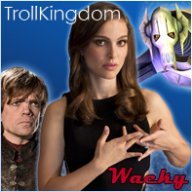
And resized to 400x400 and placed in the avatar:

Final placement still very much to be decided.
Right, now on to Kelly!
Hair can be tricky at the best of times and luckily with this image we don't have too much trouble but remember to cut carefully around wisps and curls of hair. The more detail the better.
Also, try and cut out where the background shows through the hair in large amounts like here:

To start off with we're going to make a new document and input 400 by 400 pixels for our work area.
Note: As you get more proficient you can start with a 180x180 workspace but it's more fiddly. It can produce slightly cripser details due to doing everything at scale but for the scope of this tutorial we're going to be using 400x400
Next step is we're going to load in our images that we want to use. In this case the images that Gagh wants in his avatar. He's chosen some good images because they represent different challenges in chopping which we're going to get to in a minute.
Right, so I'm going to go ahead and load the three images that we need for this avatar now.
I'm going to start chopping the Socrates image because it is by far the easiest to start off with.
Now, to start with you may be tempted to just use the magic wand tool to cut your images but don't use it. It will nearly always produce jagged edges around your image. There is a use for it when the image is high resolution and there is clear contrast between your subject and the background. Someone in a black suit against a white background for instance but don't get in to the habit of using it for everything.
You will find that you're going to have to use the lasso tool for most of your chopping regardless.
In this image I have zoomed in on the shoulder area to begin with and I have the dialog box up (done by double clicking on the "background" layer.) what I'm doing is making a new layer. This has the effect of removing the white background when I cut and instead makes everything I cut transparent which is what we want. Once you have done this the background layer will be renamed to "Layer 0"
I have started to carefully draw around the shoulder. Now, you don't have to be super exact and in some cases you will want to avoid being too exact because it can take a lot of time and effort for little gain (chopping around wispy hair as an example) but we want to get it pretty close.
Once I am happy with a selection I press the delete key to delete that area away. Don't concern yourself with the whole background. Just the edges of the image. Once the shape is cut the rest is easy to remove. Now I will contiinue around the image until I have cut Mr. Socrates from his surroundings.
Now his hair isn't too problematic but as you can see I'm being very broad at this stage. I just want to get the general shape cut out. Fine tuning can happen later once the image is scaled.
As you can see once the image is cut around it's edges I can just go in with the box tool to remove the rest which takes no time at all.
Once it's all finished I would usually scale the image down to the dimensions of my workspace (in this case 400x400) or just below. But in this case the image is already "almost" the right size (this is rare) so I can just drag my chopped image straight in to my avatar workspace.
All the same I want to tweak the size a bit which I do with the transform tool "Ctrl-T". Be careful to keep the vertical and horizontals equal though or your image will end up looking squashed or stretched.
I will be leaving this image until I have the other two in place so next I am going to choose the artwork image which looks tricky so I can save the pleasant Kelly Brook chopping until last...as a treat...or something..
Again the first thing I do is make the image in to a new layer by double clicking the "background" in the layers panel and clicking OK to turn it in to Layer 0. These things you will end up doing without thinking after you've gotten used to it. At first I thought about changing the curves of the image to make it darker so that the lines would be easier to see but after looking at the image again it doesn't seem that tricky afterall. The image is very busy so you'll have to pay attention but that's what the zoom tool and patience are for.
But since this is going to be a comprehensive tutorial I'm going to show you a classic problem I ran in to making my current avatar. I might as well teach you this trick now so you don't get caught by it another time.
As you can see the background is flooded with light and thanks to Natalie's quite, quite perfect skin the edges of her face are not very distinguishable from the background. Now, you could wing it and try to cut it by best guess but this is not a good idea and there is a far better way.
By going to Image>Adjustments>Curves I can manipulate the properties of the image in highly fine detail. A lot of people when starting out with PS go straight to the much easier Brightness and Contrast sliders but I emplore you to get used to using the curves tool since it is a billion times more powerful.
Here I have adjusted the curves to give me those easy to chop lines. After I've chopped the image I can reset them back to default and look more clever than I am.
Anyway, I thought that was worth including since it's a damn hot tip, yo!
Right, back to our current project!
I'm going to continue cutting the image but have decided that I want to remove the lightsaber because I don't think it's going to look too impressive in the finished avatar. We will be replacing the lightsaber later ourselves instead.
Remember, just cut out small sections in the zoomed in mode and make your way around the image. Don't try to do too much at once or it will end up being a sloppy chop.
The completed chop:
And resized to 400x400 and placed in the avatar:
Final placement still very much to be decided.
Right, now on to Kelly!
Hair can be tricky at the best of times and luckily with this image we don't have too much trouble but remember to cut carefully around wisps and curls of hair. The more detail the better.
Also, try and cut out where the background shows through the hair in large amounts like here: